


TABLE OF CONTENTS
NVIDIA H100 SXM On-Demand
Key Takeaways
• Prometheus is an open-source monitoring system that collects and stores time-series metrics from servers, containers, and applications.
• Running Prometheus on your own VM provides greater control over configuration, data retention, and operating costs.
• Exporters such as Node Exporter allow Prometheus to gather system-level metrics from additional machines.
• PromQL enables powerful querying of metrics to analyse performance trends and define alerting conditions.
• Using promtool to validate configuration files helps prevent errors before applying changes.
• Prometheus supports reloading configuration changes without downtime through its built-in reload mechanism.
Take Control of Your Monitoring: Why Host Prometheus on Your Own Cloud VM?
You've got a growing digital business. You're spinning up new VMs, deploying applications, and maybe even managing Kubernetes clusters. Your infrastructure is expanding, but with that growth comes a crucial question: How do you know what's actually happening inside all of it?
Your cloud VMs are powerful, flexible building blocks. One of the best things you can do with them is set up a central "observability" hub. And the cornerstone of that hub is Prometheus.

What is Prometheus in Simple Terms?
Prometheus is a free, open-source monitoring toolkit that has become the industry standard, especially for modern cloud-native environments like Kubernetes.
In short, Prometheus does three things very, very well:
-
It Collects Numbers: Prometheus visits all your applications and servers (VMs, containers, etc.) on a schedule and "scrapes" (collects) key metrics: CPU usage, memory, request counts, error rates, etc.
-
It Stores Them: It saves these numbers in a high-performance time-series database. This means every metric is stored with a timestamp, so you can see how things change over time.
-
It Lets You Act: It provides a powerful query language (PromQL) to analyze that data and a built-in alerting system to notify you (via Slack, email, etc.) when something goes wrong.
What Can You Achieve with Prometheus?
When you run your own Prometheus instance on a VM, you unlock a new level of insight. Instead of guessing, you can know.
Here are a few practical things you can do immediately:
1. The "Is my server on fire?" Monitor:
-
What it is: Monitor the fundamental health of all your VMs.
-
Metrics you'll see: CPU usage, RAM utilization, disk space, network traffic.
-
Benefit: Get an alert before your disk fills up and crashes your database. See which VM is under high load and needs to be resized.
2. The "Is my website down?" Monitor:
-
What it is: Use the Prometheus "Blackbox Exporter" to probe your website or API from the outside.
-
Metrics you'll see: Is it returning a
200 OK? Is the SSL certificate valid? How long did it take to respond? -
Benefit: Be the first to know your site is down, not the last. Track your site's performance from a customer's perspective.
3. The "Why is my app slow?" Monitor:
-
What it is: Many modern applications (or their web servers, like NGINX) can expose internal metrics.
-
Metrics you'll see: Number of active requests, total requests served, rate of 500-level errors, request duration.
-
Benefit: Pinpoint bottlenecks. You can finally see if "slowness" is due to a surge in traffic, a spike in errors, or a slow database query.
4. The "Kubernetes is a black box" Monitor:
-
-
What it is: This is Prometheus's superpower. Kubernetes is built to be monitored by Prometheus.
-
Metrics you'll see: It can automatically discover all your pods, services, and nodes and start collecting metrics on container health, resource usage, and deployment states.
-
Benefit: Gain complete visibility into your entire cluster. Understand which pods are resource-hungry, which deployments are failing, and how your cluster is scaling.
-
Why Run Prometheus on Your Own VM?
You'll see "managed Prometheus" services out there, but running it on your own cloud VM gives you three massive advantages:
-
Full Control: It's your data. You decide how long to keep it (retention period), how you secure it, and who gets to see it. You aren't locked into a specific vendor's ecosystem.
-
Predictable Cost: Managed services often charge per metric or per user, which can get expensive very quickly as you grow. With your own VM, your cost is simple and predictable: just the monthly price of the server.
-
Total Flexibility: You can install other powerful tools right alongside it. The most common partner for Prometheus is Grafana, a beautiful dashboarding tool. You can run Grafana on the same VM (or another one) and point it at your Prometheus data to create stunning, shareable dashboards.
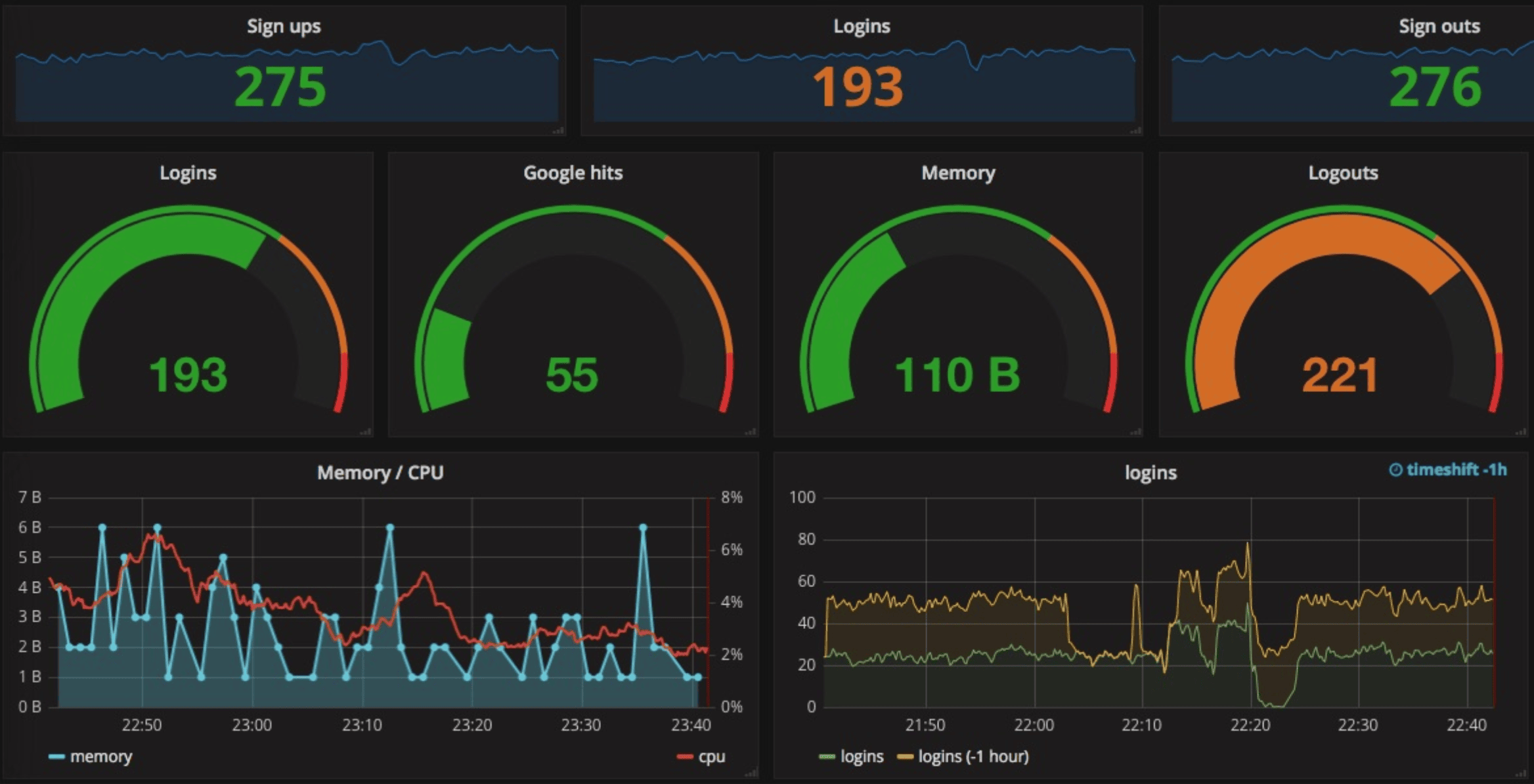 Credit: @SibiSaravanan
How to Set Up Prometheus on Your Cloud VM (A Simple Start)
We'll walk you through getting step-by-step towards getting a basic Prometheus server running in minutes.
Part 0: Getting a Hyperstack VM
This guide assumes you've just spun up a new Linux VM on our platform and can access it via SSH. If you haven't done this before, please see our getting started guide in our documentation.
Part 1: Install the Prometheus Host Server
This VM will be your central monitoring station.
1. Install Docker: Docker makes running Prometheus incredibly simple. If you don't have it, install it with this one-liner: (Note: on Hyperstack, you can spin up VMs with Docker pre-installed! Skip this step if you've done so)
curl -fsSL https://get.docker.com -o get-docker.sh
sh get-docker.sh
2. Create a Configuration File: Prometheus needs a config file to know what to monitor. We'll start by making it monitor itself.
Create a file named prometheus.yml:
# Make a directory for your config
mkdir -p /etc/prometheus
nano /etc/prometheus/prometheus.yml
(Note: You may need root permissions to edit /etc/, in this case, you can store the file elsewhere or run the commands with sudo)
Paste this into the file:
# How often to scrape targetsglobal:
scrape_interval: 15s
# This first job makes Prometheus monitor its own health
scrape_configs:
- job_name: 'prometheus'
static_configs:
- targets: ['localhost:9090']
Save and exit the editor.
3. Run the Prometheus Container: Now, run the official Prometheus image with Docker.
docker run -d \
  -p 9090:9090 \
  -v /etc/prometheus:/etc/prometheus \
  --name prometheus \
  prom/prometheus \
  --config.file=/etc/prometheus/prometheus.yml \
--web.enable-lifecycle-
-druns it in the background. -
-p 9090:9090exposes Prometheus's web UI on port9090. -
-v ...links your new config file into the container.
4. Check Your Server! That's it! Open your web browser and go to http://<your-vm-ip-address>:9090. You should see the Prometheus dashboard. If you go to the "Targets" page (Status -> Target health), you'll see your 'prometheus' job is "UP".
Part 2: Monitor Another VM (A Collection Point)
Now for the magic. Let's monitor the CPU, RAM, and disk of another VM.
1. On Your Other VM (e.g., your 'web-server'): We need to run a "Node Exporter." This is a small, official helper that exposes all the host metrics in a format Prometheus can read.
Run the Node Exporter using Docker:
docker run -d \--net="host" \--pid="host" \-v /:/host:ro,rslave \--name node-exporter \prom/node-exporter:latest \--path.rootfs=/host
This looks complex, but it's just giving the container read-only access to the host system to gather metrics. It will expose them on port 9100.
2. On Your Prometheus VM: Now, tell Prometheus about your new target. Edit your config file:
nano /etc/prometheus/prometheus.yml
Add a new job_name block to scrape_configs:
...(existing file)...

# ADD THIS NEW JOB
  - job_name: 'web-server-1'
    static_configs:
      - targets: ['<ip-of-your-other-vm>:9100']
Replace <ip-of-your-other-vm> with the real IP address of your web server.
3. Restart Prometheus: Your config file has changed, so just restart the container to apply it:
docker restart prometheus
4. Verify: Go back to your Prometheus UI at http://<your-prometheus-vm-ip>:9090 and click on "Targets". After a few seconds, you should see your new web-server-1 job listed and "UP"!
You are now officially collecting metrics from another server. You can go to the "Graph" tab and start exploring metrics like node_cpu_seconds_total or node_filesystem_avail_bytes to see your server's health in real-time.
Level Up: Pro-Tips for Managing Prometheus
In the guide above, we restarted the container to apply changes. This works, but it's not ideal for a production system as it causes a brief monitoring interruption and can be slow.
Here are two "pro-tricks" to manage your configuration like an expert.
Pro-Tip 1: Check Your Configuration Before You Reload
There's nothing worse than applying a broken config file. Before you do, you can ask Prometheus's built-in tool, promtool, to check it for you.
This command runs a temporary Docker container to validate your config file (which we placed at /etc/prometheus/prometheus.yml):
sudo cat /etc/prometheus/prometheus.yml | \sudo docker run \-i --rm --entrypoint /bin/sh prom/prometheus \-c "cat > /tmp/p.yml && promtool check config /tmp/p.yml"
This command:
- Reads your Prometheus config file from /etc/prometheus/prometheus.yml
- Pipes the content into a temporary Docker container (no volume mounting needed)
- Runs promtool inside the container to validate the configuration
- Automatically cleans up the container when done (--rm flag)
If it's valid, it will say "SUCCESS". If not, it will tell you exactly which line has the error. This saves you from pushing a change that could break your monitoring.
Pro-Tip 2: Reload Prometheus Without Restarting (Zero Downtime!)
Once your config is validated, you don't need to docker restart. You can tell Prometheus to reload its configuration gracefully.
Just run this command on your Prometheus VM:
IP=$(docker inspect -f '' prometheus) && curl -X POST http://$IP:9090/-/reload
This command does two brilliant things:
- First, it finds your Prometheus container’s IP address
- This sends a signal to the Prometheus server, which will reload its configuration file with zero downtime.
The Expert Workflow:
-
Make your changes to
/etc/prometheus/prometheus.yml. -
Run the
docker run ... promtool check configcommand to validate. -
If it passes, run
curl -X POST http://localhost:9090/-/reloadto apply.
Why You Should Always Use This
Following these steps, your monitoring, scraping, and alerting will continue uninterrupted. This checker helps you avoid:
- Invalid configuration syntax
- Missing files or references
- Incorrect rule formatting
- That awkward moment when you tell everyone “I’m reloading Prometheus” and it fails
What's Next?
You've just built the foundation for a powerful, scalable, and cost-effective monitoring system on your own VM.
The natural next step is to visualise this data. In a future post, we'll show you how to install Grafana on a VM, connect it to your new Prometheus server, and build your first beautiful dashboard.
Ready to take control? Spin up a cloud VM today and get your monitoring hub online.

FAQs
What is Prometheus?
Prometheus is an open-source monitoring toolkit that collects metrics from VMs, containers, and applications, stores them in a time-series database, and enables alerting.
Why should I run Prometheus on my own VM?
Running Prometheus on your VM gives full control, predictable costs and flexibility to integrate tools like Grafana for custom dashboards.
How do I monitor another VM with Prometheus?
Install the Node Exporter on the other VM, configure Prometheus to scrape metrics, then verify the target appears “UP” in the UI.
Can I update Prometheus configuration without downtime?
Yes, validate configs with promtool and reload using the container’s API endpoint. This ensures zero downtime and continuous metric collection.
What practical insights can Prometheus provide?
Prometheus monitors CPU, memory, disk, network, application errors, and Kubernetes pods, helping detect failures, bottlenecks or performance issues proactively.
Subscribe to Hyperstack!
Enter your email to get updates to your inbox every week