


.png)
TABLE OF CONTENTS
NVIDIA H100 SXM GPUs On-Demand
Key Takeaways
- NVIDIA Nemotron 3 Nano Omni is an open-weight multimodal model that processes video, audio, image, and text in a single endpoint.
- The model supports a 256K-token context window and accepts video up to 2 minutes, audio up to 1 hour, images, and text.
- The BF16 checkpoint (62 GB) runs on a single NVIDIA H100 80GB, with
FP8 and NVFP4 variants available for smaller GPUs. - It leads open omni models on document intelligence, video
understanding, and speech benchmarks. - The tutorial walks through deploying Nemotron 3 Nano Omni on
Hyperstack with a single H100, vLLM, and an NVMe cache. - Hyperstack provides on-demand H100 access, fast NVMe storage, and pause-billing hibernation for cost-efficient multimodal deployments.
What is NVIDIA Nemotron 3 Nano Omni?
Nemotron-3-Nano-Omni-30B-A3B-Reasoning-BF16 is an open-weight multimodal foundation model engineered to unify video, audio, image, and text understanding in a single, highly efficient reasoning loop. It replaces the traditional fragmented stack of separate vision, speech, and language models with one production-ready model that can transcribe an hour of audio, summarise a two-minute video, or extract structured data from a complex 100-page document — all from the same endpoint. Built on a 30B-A3B hybrid Mixture-of-Experts architecture and supporting context windows up to 256K tokens, Nemotron 3 Nano Omni delivers state-of-the-art accuracy on document intelligence (OCRBenchV2, MMLongBench-Doc), video understanding (Video-MME, WorldSense), and speech benchmarks (VoiceBench), while remaining lightweight enough to run on a single H100 GPU.
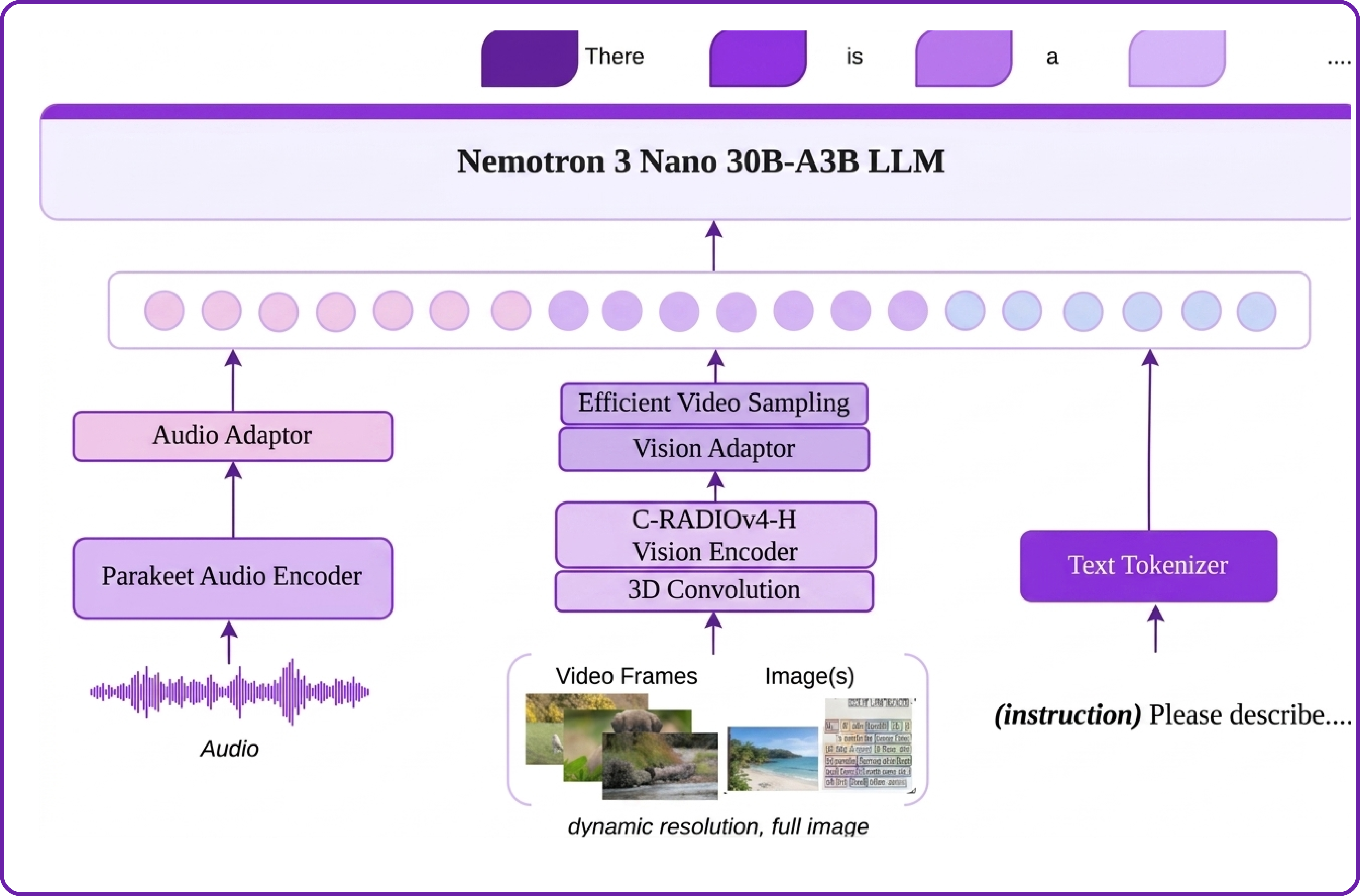
A major reason Nemotron 3 Nano Omni achieves such strong multimodal accuracy at this efficiency level is its carefully engineered training pipeline and specialised hybrid architecture. Here is how it works under the hood:
- Hybrid Mamba2-Transformer MoE Backbone: Combines Mamba2 layers (efficient long-sequence state-space modelling) with transformer layers (precise reasoning) inside a Mixture-of-Experts decoder, delivering up to 4× memory and compute efficiency over equivalent dense models.
- C-RADIOv4-H Vision Encoder: A robust foundation vision encoder that processes high-resolution images and video frames, capable of focusing on specific patches within a full image to maintain OCR-level precision on dense documents.
- Parakeet Speech Encoder: A specialised audio encoder built on NVIDIA Granary and Music Flamingo data that goes far beyond simple transcription to capture tone, intent, and acoustic events.
- 3D Convolutional Spatiotemporal Processing: Captures motion and temporal context between video frames natively rather than treating frames as independent images, enabling true video understanding.
- Efficient Video Sampling (EVS): An inference-time layer that compresses dense visual tokens from many frames into a concise set the LLM can process without overwhelming the context window — halving video prefill VRAM and TTFT.
- Native Reasoning Mode: Chain-of-thought reasoning is enabled by default with budget-controlled thinking, making it ideal for complex multi-step document and video analysis tasks.
Nemotron 3 Nano Omni Features
Nemotron 3 Nano Omni is purpose-built to consolidate enterprise multimodal pipelines into a single deployable model. Its standout capabilities include:
- True Omnimodal I/O: Accepts video (mp4, up to 2 minutes), audio (wav/mp3, up to 1 hour), images (jpeg/png), and text in a single request — no orchestration between separate models required.
- Sparse MoE Efficiency: Only ~3B of 31B parameters activate per token, giving large-model intelligence at a fraction of the compute cost.
- 256K Context Window: Reason across long documents, hour-long meeting recordings, or extended video transcripts in a single pass.
- Best-in-Class Document Intelligence: Leads OCRBenchV2 (67.04) and MMLongBench-Doc (57.5), making it ideal for contracts, financial filings, scientific papers, and scanned forms.
- Word-Level Timestamped ASR: Native speech-to-text with word-level timing, plus speech instruction following at 89.39 on VoiceBench.
- Video Understanding at Scale: Up to ~9.2× greater effective system capacity vs. alternative open omni models at the same per-user interactivity threshold, with 72.2 on Video-MME.
- Flexible Quantisation: Available in BF16 (62 GB), FP8 (33 GB), and NVFP4 (21 GB) — all staying within ~1 point of BF16 accuracy across 9 multimodal benchmarks.
- Open by Design: Full weights, datasets, and training recipes released under the NVIDIA Open Model Agreement for unrestricted commercial use.
Multimodal Benchmark Performance
Nemotron Nano VL V2 vs. Nemotron 3 Nano Omni — across 11 industry-standard benchmarks
How to Deploy Nemotron 3 Nano Omni on Hyperstack
Now, let's walk through the step-by-step process of deploying the necessary infrastructure on Hyperstack to serve Nemotron 3 Nano Omni for production multimodal workloads.
Step 1: Accessing Hyperstack
First, you'll need an account on Hyperstack.
- Go to the Hyperstack website and log in.
- If you are new, create an account and set up your billing information. Our documentation can guide you through the initial setup.
Step 2: Deploying a New Virtual Machine
From the Hyperstack dashboard, we will launch a new GPU-powered VM sized for the BF16 variant of the model.
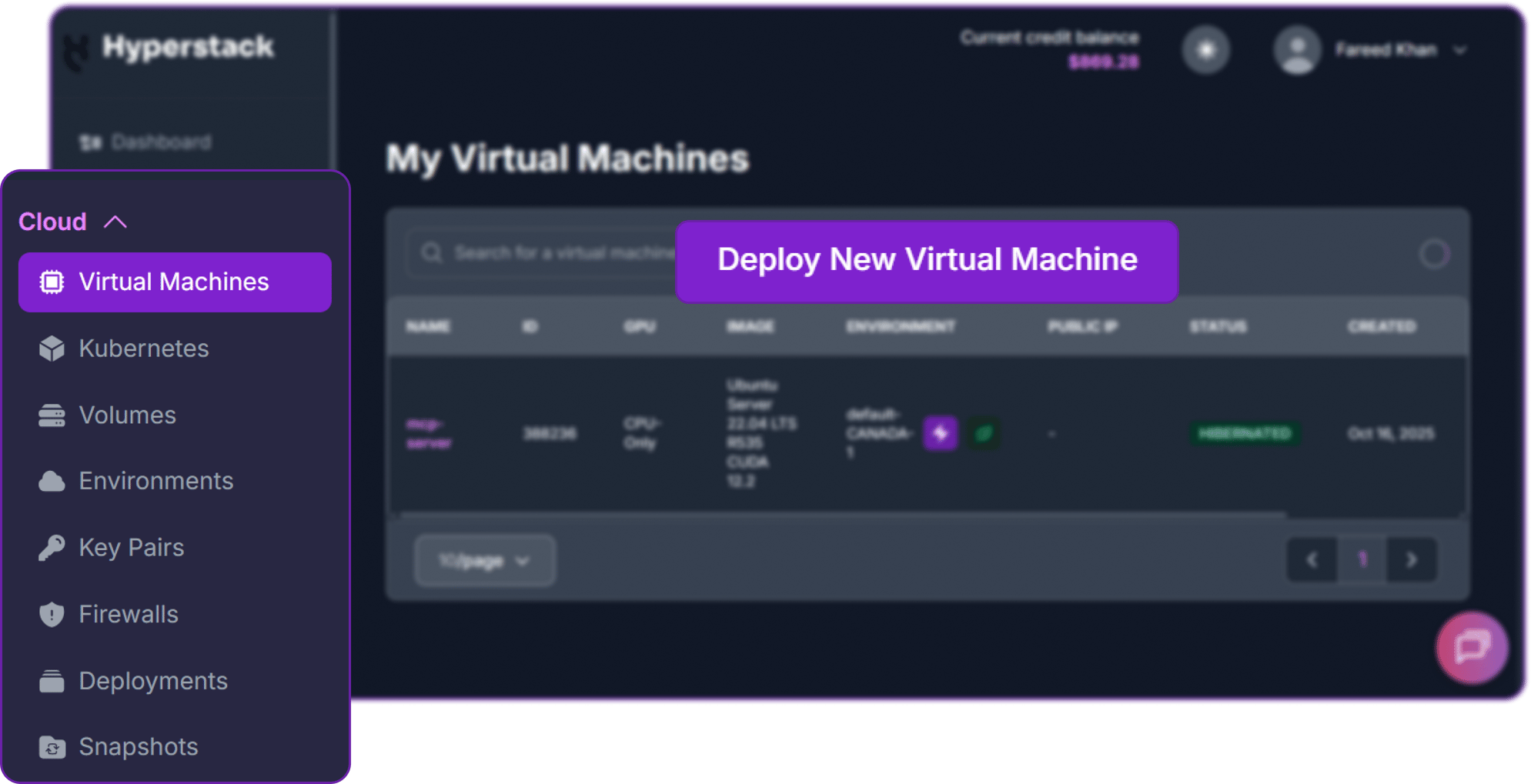
- Initiate Deployment: Look for the "Deploy New Virtual Machine" button on the dashboard and click it.
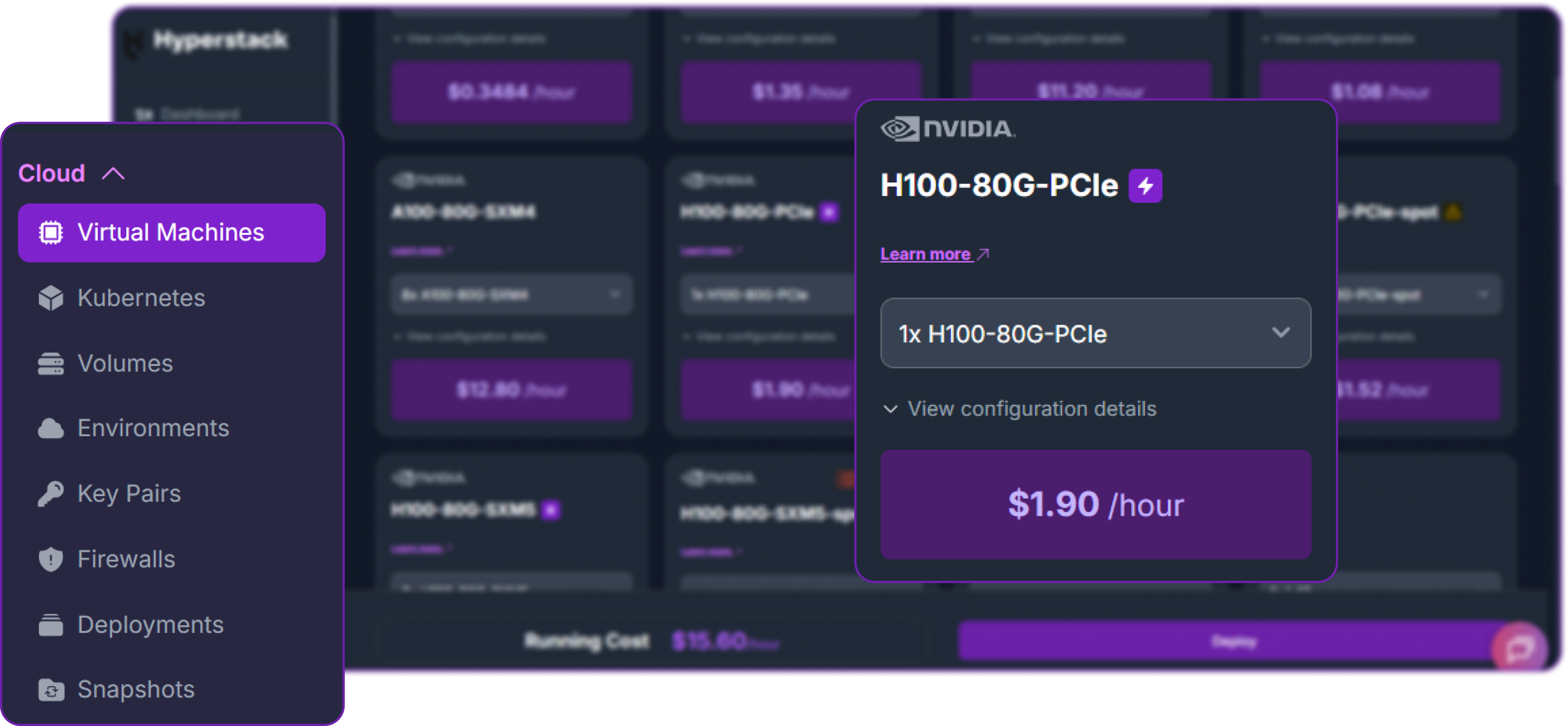
- Select Hardware Configuration: Nemotron 3 Nano Omni in BF16 is ~62 GB on disk and fits comfortably on a single H100 80GB. Choose the "1xH100-80G-PCIe" flavour. This single-GPU footprint is ideal for the Mamba2-Transformer hybrid MoE — the architecture activates only ~3B params per token, so tensor parallelism is unnecessary at this size.
- Choose the Operating System: Select an "Ubuntu Server 22.04 LTS R570 CUDA 12.8 with Docker" image (or newer).
- Select a Keypair: Choose an existing SSH keypair from your account to securely access the VM.
- Network Configuration: Ensure you assign a Public IP to your Virtual Machine. This is crucial for remote management and connecting your local development tools.
- Attach an Ephemeral Disk: The BF16 weights are ~62 GB. Attach an ephemeral NVMe volume — we'll use it as the Hugging Face cache so model loading is bottlenecked by NVMe, not network.
- Review and Deploy: Double-check your settings and click the "Deploy" button.
Step 3: Accessing Your VM
Once your VM is running, you can connect to it.
-
Locate SSH Details: In the Hyperstack dashboard, find your VM's details and copy its Public IP address.
-
Connect via SSH: Open a terminal on your local machine and use the following command, replacing the placeholders with your information.
# Connect to your VM using your private key and the VM's public IP
ssh -i [path_to_your_ssh_key] ubuntu@[your_vm_public_ip]
Replace [path_to_your_ssh_key] with the path to your private SSH key file and [your_vm_public_ip] with the actual IP address of your VM.
Step 4: Create a Model Cache Directory
We'll create a directory on the VM's high-speed ephemeral disk. Storing the 62 GB BF16 checkpoint here ensures fast cold-starts on subsequent restarts.
# Create a directory for the Hugging Face model cache
sudo mkdir -p /ephemeral/hug

# Grant full read/write permissions so the Docker container can use it
sudo chmod -R 0777 /ephemeral/hug

# Also create a media directory for sample inputs (PDFs, audio, video)
sudo mkdir -p /ephemeral/media
sudo chmod -R 0777 /ephemeral/media
Step 5: Authenticate with Hugging Face
Nemotron 3 Nano Omni is governed by the NVIDIA Open Model Agreement, so the first download requires a Hugging Face token. Generate a read token at huggingface.co/settings/tokens, then export it on the VM:
# Export your HF token so the vLLM container can pull the weights
export HF_TOKEN="hf_xxxxxxxxxxxxxxxxxxxxxxxxxxxx"
Step 6: Launch the vLLM Server
We will use the official vllm/vllm-openai:v0.20.0 image, which is the minimum version that ships the nemotron_v3 reasoning parser and 3D-conv video kernels required by this model. Note that audio packages are not preinstalled in the upstream image, so we install vllm[audio] at container startup before invoking vllm serve.
# Pull the required vLLM 0.20.0 image (CUDA 12.9 build for Hyperstack's R570 driver)
docker pull vllm/vllm-openai:v0.20.0-cu129

# Launch the multimodal server with audio + video + reasoning enabled
docker run -d \
  --gpus all \
  --ipc=host \
  --network host \
  --name vllm_nemotron_omni \
  --shm-size 16g \
  -e HF_TOKEN="$HF_TOKEN" \
  -v /ephemeral/hug:/root/.cache/huggingface \
  -v /ephemeral/media:/media:ro \
  --entrypoint /bin/bash \
  vllm/vllm-openai:v0.20.0-cu129 -c "
    pip install vllm[audio] && \
    vllm serve nvidia/Nemotron-3-Nano-Omni-30B-A3B-Reasoning-BF16 \
      --host 0.0.0.0 \
      --port 8000 \
      --tensor-parallel-size 1 \
      --max-model-len 131072 \
      --max-num-seqs 16 \
      --gpu-memory-utilization 0.92 \
      --trust-remote-code \
      --allowed-local-media-path / \
      --video-pruning-rate 0.5 \
      --media-io-kwargs '{\"video\": {\"fps\": 2, \"num_frames\": 256}}' \
      --reasoning-parser nemotron_v3 \
      --enable-auto-tool-choice \
      --tool-call-parser qwen3_coder
"
This command instructs Docker to:
--gpus all: Expose the H100 to the container.--ipc=host&--shm-size 16g: Required for vLLM's multiprocessing and large multimodal tensors during prefill.-v /ephemeral/hug:/root/.cache/huggingface: Persist the 62 GB BF16 checkpoint on the NVMe ephemeral disk between restarts.-v /ephemeral/media:/media:ro: Read-only mount for input PDFs, audio, and video files we'll use later.pip install vllm[audio]: Addslibrosaand audio decoders the upstream image omits — required before any audio request.--max-model-len 131072: 128K-token context, more than enough for hour-long audio transcripts and 100-page PDFs.--max-num-seqs 16: Conservative concurrency cap for BF16 on a single 80 GB H100 (62 GB weights leave ~18 GB for KV cache + activations). Increase this value for FP8/NVFP4 deployments.--video-pruning-rate 0.5: Enables Efficient Video Sampling — drops 50% of redundant video tokens to halve video-prefill VRAM and TTFT.--media-io-kwargs: Sets video sampling to 2 FPS and 256 frames per clip — the recommended setting for 720p video on 80 GB GPUs.--reasoning-parser nemotron_v3: Routes chain-of-thought traces into the proper response field for the Nemotron-3 chat template.--tool-call-parser qwen3_coder: The Nemotron 3 Nano Omni release re-uses the qwen3_coder parser for structured tool/function calls.--allowed-local-media-path /: Allows the API to load files from local paths (e.g., the/mediamount), avoiding base64 round-trips for large inputs.
Version Warning: Only vllm/vllm-openai:v0.20.0-cu129 (the CUDA 12.9 build) is compatible with Hyperstack's current Ubuntu images, which ship with the R570 driver. Do not use the default :v0.20.0 tag — it is built against CUDA 13.0 and requires the R580+ driver, which is not yet available on Hyperstack. Do not use :latest either.
Step 7: Verify the Deployment
First, follow the container logs to monitor model loading. The 62 GB BF16 checkpoint takes 6–10 minutes to download on first run, then 60–90 seconds to load from the NVMe cache on subsequent starts.
docker logs -f vllm_nemotron_omni
The server is ready when you see: INFO: Uvicorn running on http://0.0.0.0:8000.
Next, add a firewall rule in your Hyperstack dashboard to allow inbound TCP traffic on port 8000. Then run a quick text-only smoke test from your local machine:
# Smoke test from your local terminal
curl http://<YOUR_VM_PUBLIC_IP>:8000/v1/chat/completions \
  -H "Content-Type: application/json" \
  -H "Authorization: Bearer EMPTY" \
  -d '{
    "model": "nvidia/Nemotron-3-Nano-Omni-30B-A3B-Reasoning-BF16",
    "messages": [
      {"role": "user", "content": "In one sentence, what modalities can you process?"}
    ],
    "max_tokens": 256,
    "temperature": 0.2,
    "extra_body": {
      "top_k": 1,
      "chat_template_kwargs": {"enable_thinking": false}
    }
  }'
If the response stream comes back with a coherent answer about video, audio, image, and text, your endpoint is live and ready for real workloads.
NVIDIA recommends the following sampling parameters for Nemotron 3 Nano Omni:
# Thinking mode (long-doc analysis, multimodal reasoning,
  video summarisation)
temperature=0.6, top_p=0.95, max_tokens=20480,
reasoning_budget=16384, grace_period=1024

# Instruct (non-thinking) mode for general short-form tasks
temperature=0.2, top_k=1, max_tokens=1024

# ASR / transcription tasks
temperature=1.0, top_k=1
Step 8: Hibernating Your VM (Optional)
When you're done with a workload, you can hibernate the VM to pause compute billing while preserving the entire setup — including the 62 GB cached weights on the ephemeral volume:
- In the Hyperstack dashboard, locate your VM.
- Click the "Hibernate" option.
- Resume any time without redownloading the model.
Use Case 1: Document Intelligence — PDF Extraction at Scale
Document intelligence is where Nemotron 3 Nano Omni really pulls away from older VLMs. With 67.04 on OCRBenchV2 and 57.5 on MMLongBench-Doc, it can read scanned contracts, parse complex financial tables, and extract structured data from multi-column scientific PDFs. The OpenAI-compatible API does not accept raw PDF uploads, so the standard pattern is to render each page to PNG with PyMuPDF and send pages as base64 images.
First, install the local dependencies on your client machine (not the VM):
pip3 install openai pymupdf pillowNow we'll build a reusable PDF-to-structured-data extractor. The script below renders each page at 200 DPI, sends it to Nemotron 3 Nano Omni with a structured-extraction prompt, and aggregates the page-level outputs into a single JSON document. We use thinking mode here because long documents benefit significantly from the model's chain-of-thought reasoning.
# pdf_extract.py — page-by-page structured extraction with Nemotron 3 Nano Omni
import base64, io, json
import fitz  # PyMuPDF
from openai import OpenAI

# Point at your Hyperstack VM
client = OpenAI(
    base_url="http://<YOUR_VM_PUBLIC_IP>:8000/v1",
    api_key="EMPTY",
)
MODEL = "nvidia/Nemotron-3-Nano-Omni-30B-A3B-Reasoning-BF16"

def render_page_to_data_url(pdf_path: str, page_num: int, dpi: int = 200) -> str:
    """Render a single PDF page to a PNG data URL."""
    doc = fitz.open(pdf_path)
    page = doc[page_num]
    pix = page.get_pixmap(dpi=dpi)
    png_bytes = pix.tobytes("png")
    b64 = base64.b64encode(png_bytes).decode("utf-8")
    return f"data:image/png;base64,{b64}"

def extract_page(pdf_path: str, page_num: int) -> dict:
    image_url = render_page_to_data_url(pdf_path, page_num)

    prompt = (
        "You are a document intelligence system. Extract the following from "
        "this page and return a single valid JSON object with these keys:\n"
        "  - page_title (string or null)\n"
        "  - section_headers (list of strings)\n"
        "  - key_facts (list of one-sentence factual statements)\n"
        "  - tables (list of objects with 'caption' and 'rows' as 2D arrays)\n"
        "  - footnotes (list of strings)\n"
        "Respond with ONLY the JSON, no prose."
    )

    response = client.chat.completions.create(
        model=MODEL,
        messages=[{
            "role": "user",
            "content": [
                {"type": "text", "text": prompt},
                {"type": "image_url", "image_url": {"url": image_url}},
            ],
        }],
        max_tokens=20480,
        temperature=0.6,
        top_p=0.95,
        extra_body={
            "thinking_token_budget": 16384 + 1024,
            "chat_template_kwargs": {
                "enable_thinking": True,
                "reasoning_budget": 16384,
            },
        },
    )

    raw = response.choices[0].message.content.strip()
    # Strip markdown fences if the model wrapped JSON in them
    if raw.startswith("```"):
        raw = raw.split("```")[1].lstrip("json").strip()
    return json.loads(raw)

if __name__ == "__main__":
    pdf_path = "q4_earnings_report.pdf"
    doc = fitz.open(pdf_path)
    full_extraction = []
    for i in range(len(doc)):
        print(f"Processing page {i+1}/{len(doc)}...")
        full_extraction.append({"page": i + 1, **extract_page(pdf_path, i)})

    with open("extracted.json", "w") as f:
        json.dump(full_extraction, f, indent=2)
    print(f"Extracted {len(full_extraction)} pages → extracted.json")
Running this on a sample Q4 earnings report (page 3, which contains a revenue-by-segment table) produces output like:
{
  "page": 3,
  "page_title": "Revenue by Operating Segment",
  "section_headers": [
    "Segment Performance",
    "Year-over-Year Comparison"
  ],
  "key_facts": [
    "Cloud Services revenue grew 34% year-over-year to $4.82B.",
    "Hardware revenue declined 6% YoY to $1.91B due to supply normalization.",
    "Total Q4 revenue reached $8.14B, a 19% increase versus Q4 prior year."
  ],
  "tables": [
    {
      "caption": "Q4 Revenue by Segment ($ millions)",
      "rows": [
        ["Segment", "Q4 Current", "Q4 Prior", "YoY %"],
        ["Cloud Services", "4,820", "3,597", "+34.0%"],
        ["Hardware", "1,910", "2,032", "-6.0%"],
        ["Software Licensing", "1,410", "1,213", "+16.2%"]
      ]
    }
  ],
  "footnotes": [
    "All figures unaudited. Constant-currency growth shown in Appendix B."
  ]
}
Notice that the model not only OCR'd the table accurately but also reasoned about the numbers — computing year-over-year deltas and pulling them into key_facts rather than just regurgitating cells. This is exactly what MMLongBench-Doc measures, and where Nemotron 3 Nano Omni is currently best-in-class among open omni models.
Throughput Tip: For multi-page batches, render all pages first then send them concurrently using asyncio + AsyncOpenAI. With --max-num-seqs 16 on a single H100, you can comfortably process 1–2 pages/sec with reasoning enabled, or 4–6 pages/sec with reasoning disabled for simpler extraction tasks.
Use Case 2: Audio Transcription & Understanding
Nemotron 3 Nano Omni's audio stack is built on the NVIDIA Parakeet encoder and supports word-level timestamped ASR, speech instruction following (89.39 on VoiceBench), and full audio-content reasoning. It accepts wav and mp3 at 8 kHz or higher, with single files up to one hour long. Unlike a pure ASR model, you can ask it questions about the audio rather than just transcribing it.
The example below shows two patterns: first, a clean transcription with timestamps; second, a content-understanding query against the same audio. We'll use a meeting recording stored on the VM's /ephemeral/media mount.
# audio_pipeline.py — transcribe + understand a meeting recording
import base64
from openai import OpenAI

client = OpenAI(base_url="http://<YOUR_VM_PUBLIC_IP>:8000/v1", api_key="EMPTY")
MODEL = "nvidia/Nemotron-3-Nano-Omni-30B-A3B-Reasoning-BF16"

def audio_to_data_url(path: str) -> str:
    with open(path, "rb") as f:
        b64 = base64.b64encode(f.read()).decode("utf-8")
    return f"data:audio/wav;base64,{b64}"

audio_url = audio_to_data_url("meeting_q4_planning.wav")

# --- Pattern 1: Word-level timestamped transcription (ASR mode) ---
# NVIDIA recommends temperature=1.0, top_k=1 for ASR tasks.
transcript_resp = client.chat.completions.create(
    model=MODEL,
    messages=[{
        "role": "user",
        "content": [
            {"type": "audio_url", "audio_url": {"url": audio_url}},
            {"type": "text",
             "text": "Transcribe this recording verbatim with word-level timestamps "
                     "in [hh:mm:ss] format at the start of each utterance."},
        ],
    }],
    max_tokens=8192,
    temperature=1.0,
    extra_body={
        "top_k": 1,
        "chat_template_kwargs": {"enable_thinking": False},
    },
)
print("=== TRANSCRIPT ===")
print(transcript_resp.choices[0].message.content)

# --- Pattern 2: Content-understanding Q&A on the same audio ---
qa_resp = client.chat.completions.create(
    model=MODEL,
    messages=[{
        "role": "user",
        "content": [
            {"type": "audio_url", "audio_url": {"url": audio_url}},
            {"type": "text",
             "text": "List every action item assigned in this meeting along with "
                     "the owner and any mentioned deadline. Use bullet points."},
        ],
    }],
    max_tokens=2048,
    temperature=0.2,
    extra_body={
        "top_k": 1,
        "chat_template_kwargs": {"enable_thinking": False},
    },
)
print("\n=== ACTION ITEMS ===")
print(qa_resp.choices[0].message.content)
For a 6-minute Q4 planning recording, the transcription pattern produces:
=== TRANSCRIPT ===
[00:00:02] Sarah: Alright, let's get started. Thanks everyone for joining
the Q4 planning sync.
[00:00:09] Sarah: First on the agenda is the inference cost review. Marcus,
do you have the latest numbers?
[00:00:17] Marcus: Yeah, so we're trending about 18% over budget on GPU
spend, mostly driven by the new vision pipeline.
[00:00:26] Sarah: Got it. Can you put together a cost-reduction proposal
by next Friday?
[00:00:31] Marcus: Yep, I'll have it ready by the 15th.
...
And the same audio passed to the Q&A pattern returns a structured action-item list:
=== ACTION ITEMS ===
- Marcus: Prepare a GPU-cost reduction proposal — due Friday the 15th.
- Priya: Benchmark the FP8 checkpoint against BF16 on the eval set —
  due end of next week.
- Sarah: Schedule a follow-up with the platform team to review KV-cache
  utilization — by EOD Monday.
- Marcus + Priya: Co-author a one-page summary for the leadership review
  — due before the next planning sync.
This is the consolidation Omni is built for: one model, one endpoint, both raw transcription and semantic understanding. Previously this would have required a separate Whisper-class ASR model plus an LLM running diarisation-aware summarisation on top of its output.
Long-Audio Tip: For recordings over 30 minutes, mount the file into the container at /media and pass it as a file:// URL instead of base64. The --allowed-local-media-path / flag we set in Step 6 enables this and avoids inflating the request payload by ~33% from base64 encoding.
Use Case 3: Video Summarisation & Temporal Q&A
Video is where Nemotron 3 Nano Omni's hybrid architecture shows the most dramatic efficiency gains — up to ~9.2× greater effective system capacity versus alternative open omni models at the same per-user interactivity threshold, thanks to 3D-conv spatiotemporal processing and Efficient Video Sampling. The model accepts mp4 files up to two minutes long; for 1080p content, sample at 1 FPS / 128 frames, and for 720p or lower, you can push to 2 FPS / 256 frames (which is what we configured at server launch).
For video tasks, NVIDIA recommends thinking mode — the chain-of-thought helps the model integrate temporal information across frames before answering. Below is a complete pipeline that produces both a dense summary and answers specific temporal questions about a product demo video.
# video_pipeline.py — dense summary + temporal Q&A on a product demo
from pathlib import Path
from openai import OpenAI

client = OpenAI(base_url="http://<YOUR_VM_PUBLIC_IP>:8000/v1", api_key="EMPTY")
MODEL = "nvidia/Nemotron-3-Nano-Omni-30B-A3B-Reasoning-BF16"

# Path on the VM — uses the /media mount we created in Step 4
video_url = Path("/media/product_demo.mp4").resolve().as_uri()

REASONING_BUDGET = 16384
GRACE_PERIOD = 1024

def ask_video(question: str, use_audio: bool = True) -> str:
    response = client.chat.completions.create(
        model=MODEL,
        messages=[{
            "role": "user",
            "content": [
                {"type": "video_url", "video_url": {"url": video_url}},
                {"type": "text", "text": question},
            ],
        }],
        max_tokens=20480,
        temperature=0.6,
        top_p=0.95,
        extra_body={
            "thinking_token_budget": REASONING_BUDGET + GRACE_PERIOD,
            "chat_template_kwargs": {
                "enable_thinking": True,
                "reasoning_budget": REASONING_BUDGET,
            },
            # Set to True for video+audio joint reasoning (e.g. tutorials, lectures)
            "mm_processor_kwargs": {"use_audio_in_video": use_audio},
        },
    )
    return response.choices[0].message.content

# 1. Dense scene-by-scene summary
summary = ask_video(
    "Provide a dense, scene-by-scene summary of this product demo. "
    "For each scene, include the visible UI elements, what action the "
    "presenter takes, and any on-screen text."
)
print("=== DENSE SUMMARY ===")
print(summary)

# 2. Specific temporal Q&A — the model must integrate across frames
answer = ask_video(
    "At what point in the demo does the presenter switch from the "
    "dashboard view to the settings panel, and what configuration "
    "change do they make there?"
)
print("\n=== TEMPORAL Q&A ===")
print(answer)
For a 90-second product demo of a hypothetical analytics dashboard, the dense summary returns:
=== DENSE SUMMARY ===
Scene 1 (0:00–0:12) — The video opens on a dark-mode dashboard titled
"Revenue Analytics — Q4 2025." Visible UI elements include a top
navigation bar with tabs labeled Overview, Segments, Forecasts, and
Settings. A line chart in the centre shows weekly revenue trending
upward. The presenter's cursor hovers over the "Segments" tab.

Scene 2 (0:12–0:34) — The presenter clicks "Segments." The view
transitions to a stacked bar chart showing four product lines. On-screen
text reads "Cloud Services now contributes 59% of total revenue." The
presenter narrates the year-over-year growth rates while highlighting
each bar in turn.

Scene 3 (0:34–0:51) — A tooltip appears showing the exact dollar value
for the Cloud Services segment ($4,820M). The presenter clicks a small
gear icon in the top right, and the Settings panel slides in from the
right edge of the screen.

Scene 4 (0:51–1:18) — In the Settings panel, the presenter toggles
"Constant-currency adjustment" from Off to On. The chart in the
background re-renders, and the Cloud Services bar shrinks slightly...
And the temporal-reasoning question returns:
=== TEMPORAL Q&A ===
The presenter switches from the dashboard view to the settings panel at
approximately 0:34, by clicking a small gear icon in the top-right
corner of the dashboard. In the settings panel, the only configuration
change made is toggling "Constant-currency adjustment" from Off to On —
this causes the underlying revenue chart to re-render with adjusted
figures, after which the presenter returns to the dashboard view at
roughly 1:18.
Both responses required the model to track UI state across frames, not just describe individual screenshots. This is precisely what 3D convolutions and EVS are built for, and it's why a single Nemotron 3 Nano Omni call replaces what would otherwise be a video-frame-extractor + per-frame VLM + temporal-reasoning LLM pipeline.
Frame-Sampling Tip: If your video has fast motion (sports, gameplay) or rapidly changing UI, push toward 256 frames at 2 FPS. For static talking-head content, 64–128 frames at 1 FPS gives the same accuracy at half the prefill VRAM. The --video-pruning-rate 0.5 EVS flag we set at launch automatically discards redundant tokens regardless of which sampling rate you choose.
Disabling "Thinking" Mode for Latency-Sensitive Tasks
Reasoning mode is on by default and is the right choice for long documents, video summarisation, and any multi-step analysis. But for short, latency-sensitive requests — image classification, simple ASR, single-fact extraction — the chain-of-thought adds tokens you don't need. Disable it per-request with the chat_template_kwargs override:
from openai import OpenAI
client = OpenAI(base_url="http://<YOUR_VM_PUBLIC_IP>:8000/v1", api_key="EMPTY")

response = client.chat.completions.create(
    model="nvidia/Nemotron-3-Nano-Omni-30B-A3B-Reasoning-BF16",
    messages=[{"role": "user",
               "content": "Classify this invoice as 'paid', 'overdue', or 'pending' in one word."}],
    max_tokens=16,
    temperature=0.2,
    extra_body={
        "top_k": 1,
        "chat_template_kwargs": {"enable_thinking": False},
    },
)
print(response.choices[0].message.content)
# → "overdue"
For text and image inputs, NVIDIA recommends keeping reasoning mode on. For pure ASR, video, and audio Q&A, try both modes against your eval set — the right answer depends on how much temporal/contextual integration the question requires.
Why Deploy Nemotron 3 Nano Omni on Hyperstack?
Hyperstack is a cloud platform purpose-built to accelerate AI and machine learning workloads, and Nemotron 3 Nano Omni's multimodal pipeline is exactly the kind of GPU-bound, memory-sensitive deployment Hyperstack is engineered for:
docker run command above runs without driver wrangling or kernel patches.
FAQs
What is NVIDIA Nemotron 3 Nano Omni?
Nemotron 3 Nano Omni is NVIDIA's open-weight multimodal model that unifies video, audio, image, and text understanding in a single 30B-parameter Mamba2-Transformer hybrid MoE (with ~3B active parameters per token), released under the NVIDIA Open Model Agreement for commercial use.
Can Nemotron 3 Nano Omni run on a single H100?
Yes. The BF16 checkpoint is 62 GB and fits on a single NVIDIA H100 80GB, which is the minimum spec NVIDIA lists. FP8 (33 GB) and NVFP4 (21 GB) variants run on smaller GPUs with negligible accuracy loss.
What is the maximum context window?
Up to 256K tokens. On a single H100 with BF16, 128K is a comfortable practical setting that leaves enough VRAM for the KV cache plus a reasonable batch size.
What input formats does the model accept?
Video as mp4 up to 2 minutes, audio as wav or mp3 up to 1 hour, images as jpeg/png, and text. PDFs must be rendered to images first — the API does not accept raw PDF uploads.
Why do I need to install vllm[audio] manually?
The upstream vllm/vllm-openai:v0.20.0 Docker image ships without audio decoders to keep the image size down. Audio support requires librosa and related packages, which are pulled in by the [audio] extra. Running it as part of the container's startup command (as shown in Step 6) is the recommended pattern.
Is reasoning mode worth the extra latency?
For long documents, video summarisation, and any task requiring temporal or cross-modal integration — yes, the accuracy gains are substantial and reasoning is on by default. For short, single-fact tasks (classification, simple ASR), disable it via chat_template_kwargs.enable_thinking: false for a cleaner, faster response.
What's the easiest way to scale beyond a single H100?
Switch to the FP8 or NVFP4 quantised checkpoints to free up VRAM for higher concurrency on the same GPU, or move to a multi-GPU Hyperstack flavour and add --tensor-parallel-size N to the vllm serve command. Both paths are drop-in changes that don't require modifying client code.
Subscribe to Hyperstack!
Enter your email to get updates to your inbox every week