


TABLE OF CONTENTS
NVIDIA H100 SXM GPUs On-Demand
Key Takeaways
- The article explains how to run Mistral Large 3 on Hyperstack using a cloud-based GPU virtual machine.
- It outlines the hardware requirements, including using an 8× NVIDIA H100 GPU configuration.
- The guide walks through creating a Hyperstack VM and connecting to it via SSH.
- It demonstrates deploying Mistral Large 3 using vLLM inside Docker containers.
- The tutorial shows how to expose the model for inference through an API and OpenWebUI.
- It includes steps to verify GPU usage and test the model after deployment.
Looking to deploy Mistral Large 3 on Hyperstack? This guide gets you running end-to-end on Hyperstack’s scalable infrastructure. We walk you through environment setup, model installation and inference execution with best-practice tips for performance and cost. Explore our full tutorial below to deploy and run Mistral Large 3 with ease.
What is Mistral Large 3?
Mistral Large 3 (675B Instruct 2512) is a state-of-the-art multimodal Granular Mixture-of-Experts (MoE) model featuring 675B total parameters with 41B active. The model is built from scratch on 3000 NVIDIA H200s and is designed for production-grade assistants, long-context reasoning, agentic workflows, enterprise knowledge automation and multimodal applications.
Mistral Large 3 Features
The latest Mistral Large 3 comes with new capabilities, including:
- Architecture: Granular MoE: A 675B-parameter mixture-of-experts model with 41B active parameters, delivering high efficiency and frontier-level performance.
- Multimodal Capability (Vision and Text): Built-in 2.5B vision encoder enabling robust image understanding alongside strong text reasoning.
- Long Context: 256k Window: Supports extremely long inputs, making it ideal for enterprise documents, RAG, and complex workflows.
- Agentic Intelligence: Native Tools: Advanced tool-use with function calling, JSON mode, and auto tool selection for agentic systems.
- Multilingual Support: 11+ Languages: Consistent performance across major global languages for global-scale AI applications.
How to Deploy Mistral Large 3
Now, let's walk through the step-by-step process of deploying Mistral-Large-3-675B-Instruct-2512 on Hyperstack.
Step 1: Accessing Hyperstack
- Go to the Hyperstack website and log in to your account.
- If you're new to Hyperstack, you'll need to create an account and set up your billing information. Check our documentation to get started with Hyperstack.
- Once logged in, you'll be greeted by the Hyperstack dashboard, which provides an overview of your resources and deployments.
Step 2: Deploying a New Virtual Machine
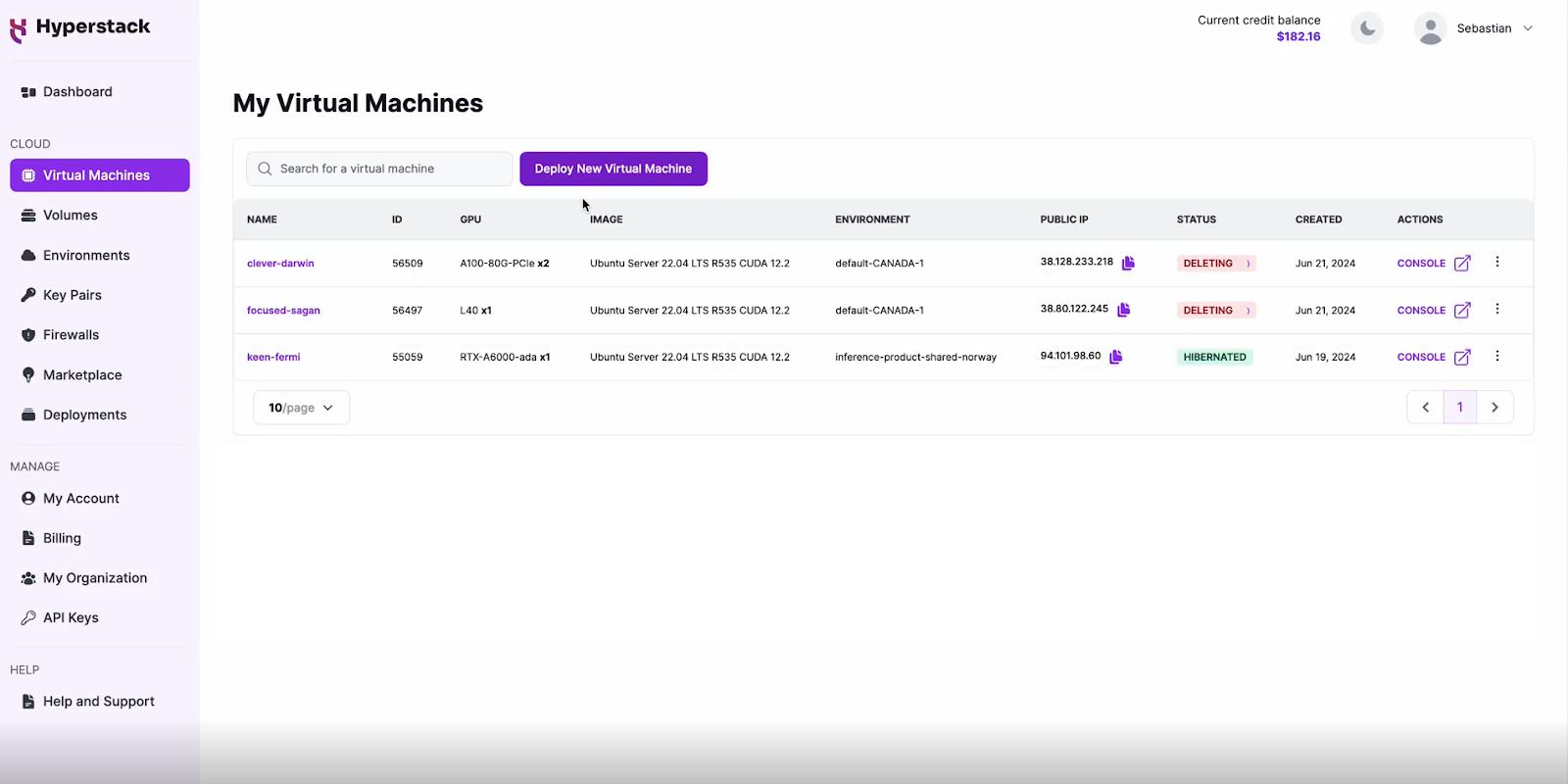
Initiate Deployment
- Look for the "Deploy New Virtual Machine" button on the dashboard.
- Click it to start the deployment process.
Select Hardware Configuration
- For Mistral Large 3, go to the hardware options and choose the "8xH100-80G-PCIe-NVLink" flavour.
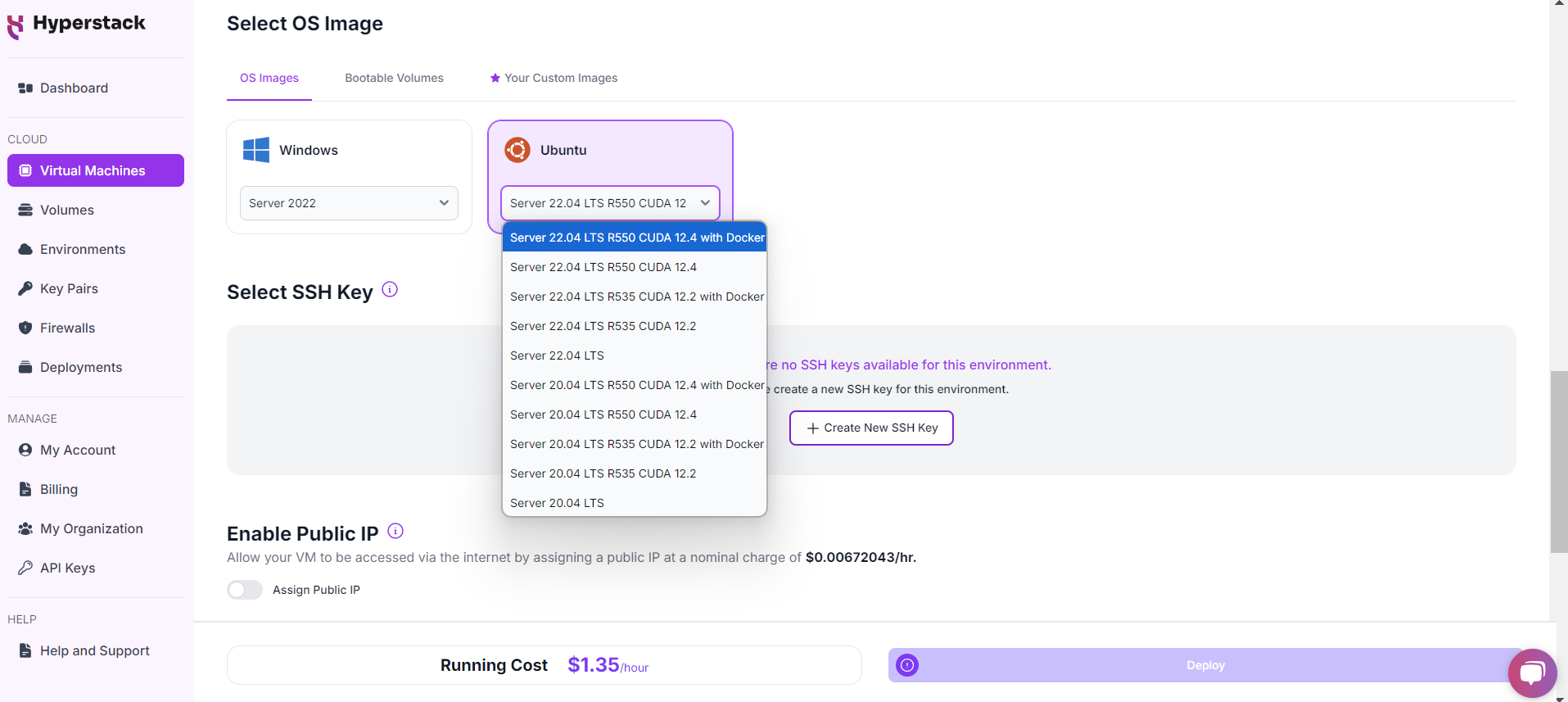
Choose the Operating System
- Select the "Ubuntu Server 22.04 LTS R535 CUDA 12.4 with Docker".
Select a keypair
- Select one of the keypairs in your account. Don't have a keypair yet? See our Getting Started tutorial for creating one.
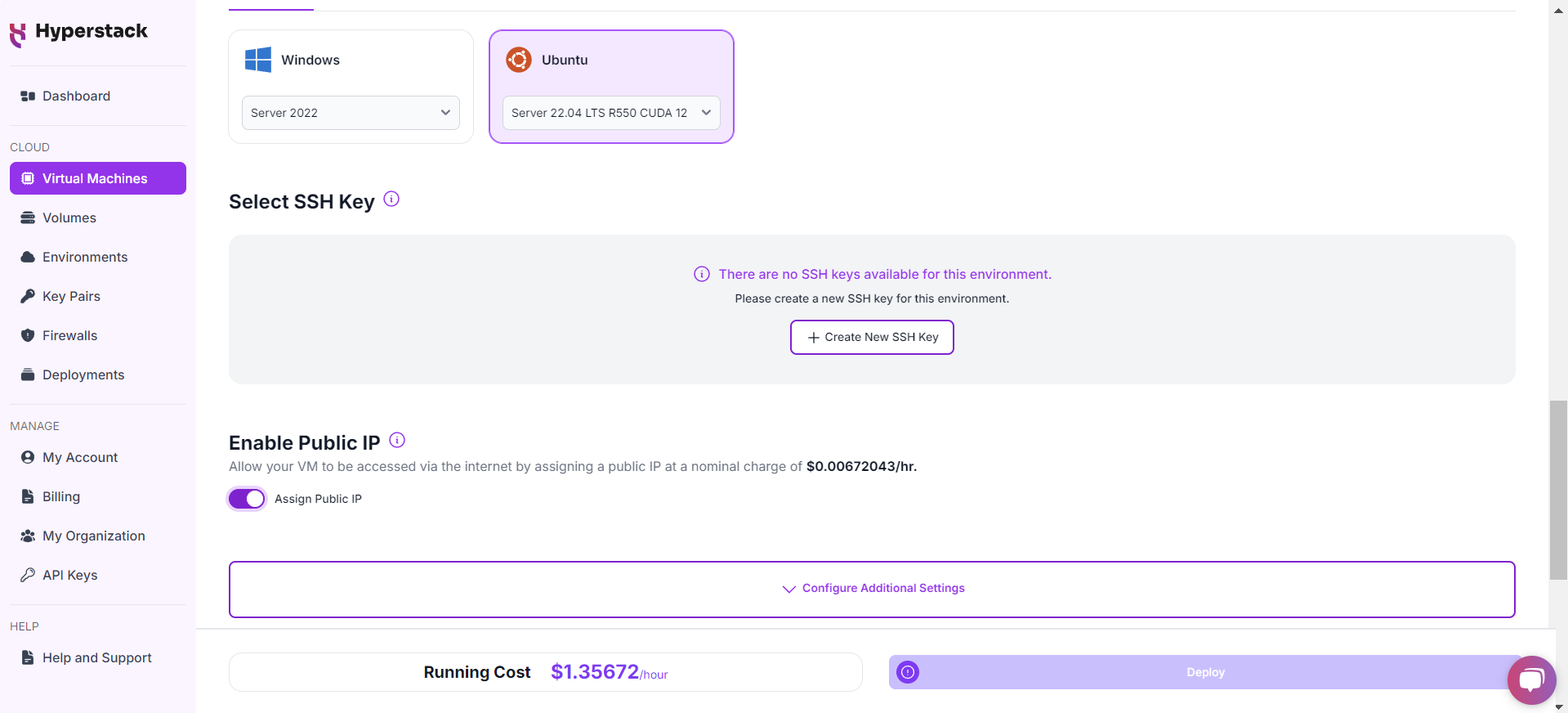
Network Configuration
- Ensure you assign a Public IP to your Virtual machine [See the attached screenshot].
- This allows you to access your VM from the internet, which is crucial for remote management and API access.
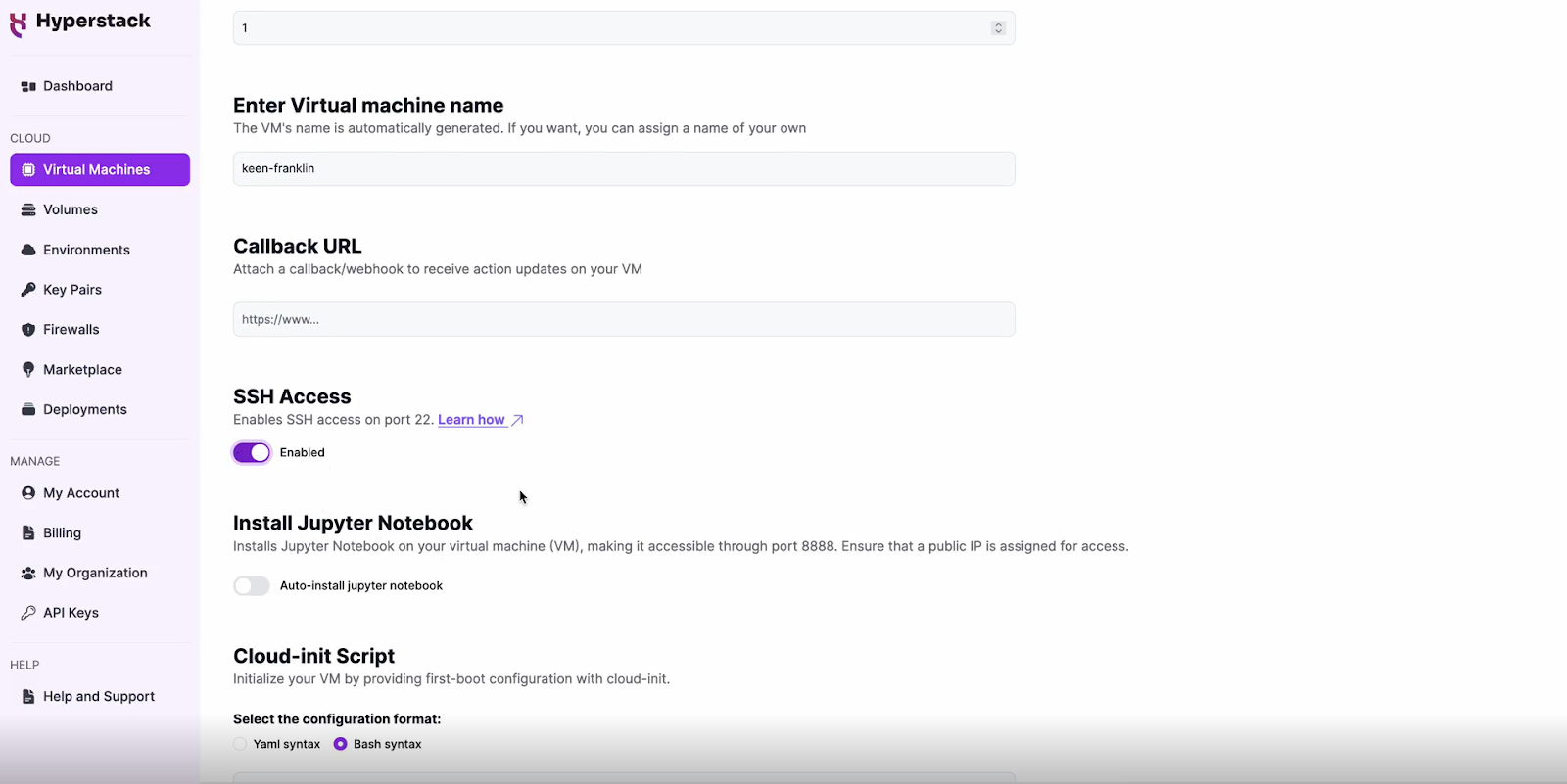
Enable SSH Access
- Make sure to enable an SSH connection.
- You'll need this to securely connect and manage your VM.
- Double-check all your settings.
- Click the "Deploy" button to launch your virtual machine.
Step 4: Accessing Your VM
Now, you can access your VM:
Locate SSH Details
- In the Hyperstack dashboard, find your VM's details.
- Look for the public IP address, which you will need to connect to your VM with SSH.
Connect via SSH
- Open a terminal on your local machine.
- Use the command ssh -i [path_to_ssh_key] [os_username]@[vm_ip_address] (e.g: ssh -i /users/username/downloads/keypair_hyperstack ubuntu@0.0.0.0.0)
- Replace username and ip_address with the details provided by Hyperstack.
Setting Up VLLM with Mistral 3 675B and OpenWebUI
Now, you need to set up VLLM with Mistral 675B and OpenWebUI to interact with the model. Follow the steps below:
Step 1: SSH into the VM
# SSH into your VM
# Replace:
#   [path_to_ssh_key] → path of your SSH private key
#   [os_username] → VM OS username (e.g., ubuntu)
#   [vm_ip_address] → public IP of the VM

ssh -i [path_to_ssh_key] [os_username]@[vm_ip_address]

# Example:
# ssh -i /users/username/downloads/keypair_hyperstack ubuntu@0.0.0.0.0
Step 2: Create a Docker Network to Connect VLLM + OpenWebUI
# Create a custom Docker network
docker network create docker-net
Step 3: Create Ephemeral Disk Directory for Model Storage
# Create directory for storing HuggingFace model cache
sudo mkdir -p /ephemeral/hug

# Give full read/write permissions
sudo chmod 0777 /ephemeral/hug
Step 4: Pull + Start the VLLM Container (Mistral 675B Model)
sudo docker run -d \
  --gpus all \                       # Use all available GPUs
  --network docker-net \             # Connect to docker-net
  --ipc=host \                       # Shared IPC for performance
  -p 8000:8000 \                     # Expose VLLM OpenAI API port
  -v /ephemeral/hug:/hug:rw \        # Mount model cache directory
  --name vllm \                      # Container name
  --restart always \                 # Auto-restart
  -e HF_HOME=/hug \                  # Set HF cache root
  vllm/vllm-openai:latest \          # VLLM docker image
  --model mistralai/Mistral-Large-3-675B-Instruct-2512-NVFP4 \  # Model
  --host 0.0.0.0 \                   # Expose publicly
  --port 8000 \                      # Server port
  --tensor-parallel-size 8 \         # Use 8 GPUs for tensor parallelism
  --max-model-len 32768 \            # Context length
  --tokenizer_mode mistral \         # Tokenizer setting
  --config_format mistral \          # Model config format
  --load_format mistral              # Load format
Step 5: View VLLM Logs to Verify Loading & Errors
docker logs -f vllm
Step 6: Test VLLM API (Chat Completion Test)
curl http://localhost:8000/v1/chat/completions \
  -H "Content-Type: application/json" \
  -d '{
    "model": "mistralai/Mistral-Large-3-675B-Instruct-2512-NVFP4",
    "messages": [
      {"role": "user", "content": "Explain the concept of time dilation in simple terms."}
    ],
    "max_tokens": 200,
    "temperature": 0.7
  }'
The output of the above command is:
{"id":"chatcmpl-b763944848b9e453","object":"chat.completion","created":1764850025,"model":"mistralai/Mistral-Large-3-675B-Instruct-2512-NVFP4","choices":[{"index":0,"message":{"role":"assistant","content":"Sure! **Time dilation** i ..."}}]}
Step 7: Validate GPU Usage (Model should Load all GPUs)
nvidia-smi
The output of the above command is:
| 0 NVIDIA H100 PCIe ... 79945MiB |
| 1 NVIDIA H100 PCIe ... 79945MiB |
| 2 NVIDIA H100 PCIe ... 79945MiB |
...
| 7 NVIDIA H100 PCIe ... 79945MiB |
Step 8: Run OpenWebUI Connected to vLLM
sudo docker run -d \
  --network docker-net \
  -p 3000:8080 \
  -v open-webui:/app/backend/data \
  --name open-webui \
  --restart always \
  -e OPENAI_API_BASE_URL=http://vllm:8000/v1 \
  ghcr.io/open-webui/open-webui:main

# Configuration Details:
# --network docker-net        → Connects to same network as VLLM
# -p 3000:8080               → Expose OpenWebUI externally on port 3000
# -v open-webui:...          → Persistent data storage
# --name open-webui          → Container name
# --restart always           → Auto-restart on failure
# -e OPENAI_API_BASE_URL     → Connect WebUI to VLLM service
# ghcr.io/...                → OpenWebUI image from GitHub Container Registrye
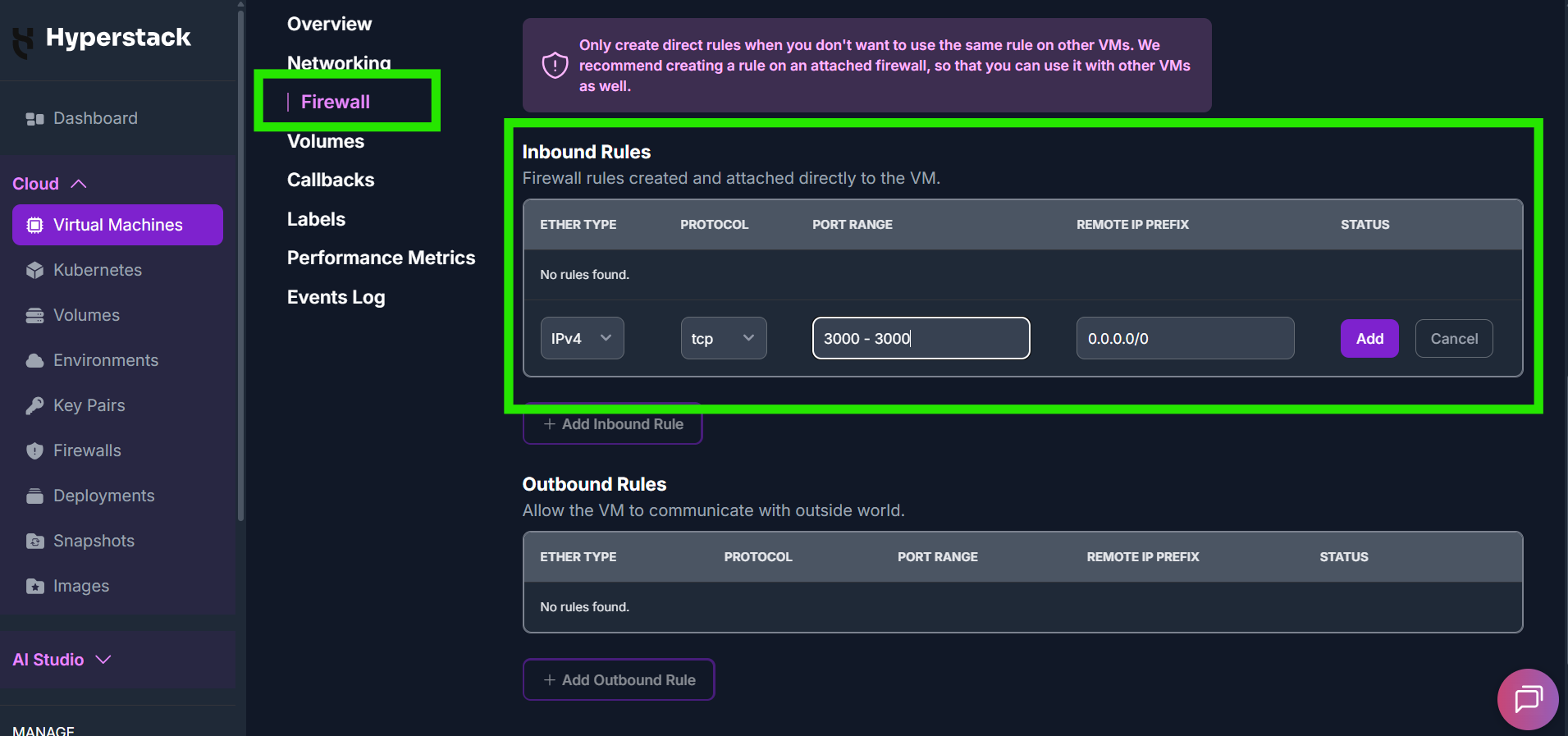
Step 9: Add Firewall Rule (Port 3000 inbound)
- Allow inbound TCP 3000 under VM's firewall settings.
- Apply to the VM.
Step 10: Visit the Web UI in Browser
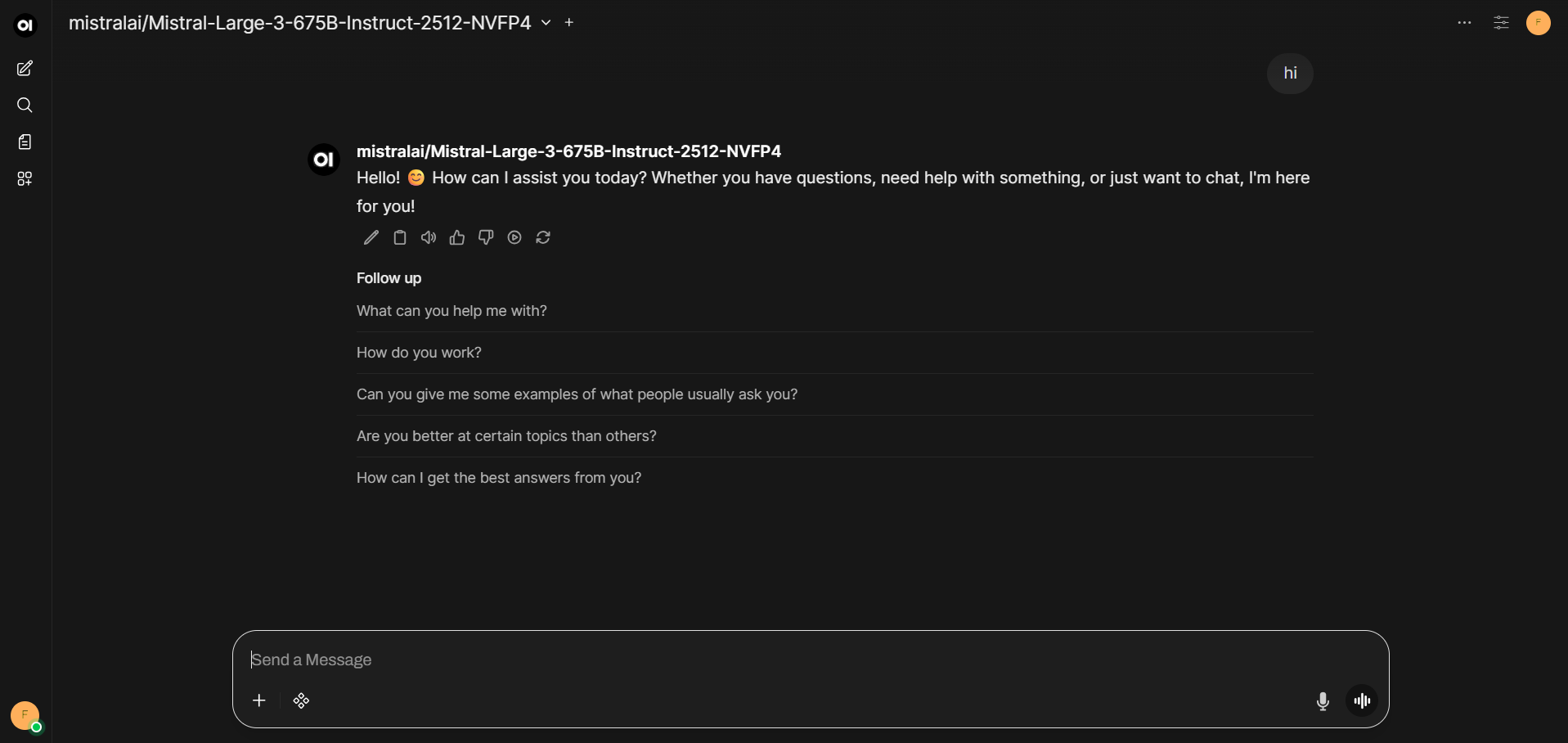
To interact with the model, you can visit the web UI in browser:
http://<vm_ip_address>:3000
- Sign in or create an account.
- Choose model: mistralai/Mistral-Large-3-675B-Instruct-2512-NVFP4
- Start chatting with the model.
When you're finished with your current workload, you can hibernate your VM to avoid incurring unnecessary costs:
- In the Hyperstack dashboard, locate your Virtual machine.
- Look for a "Hibernate" option.
- Click to hibernate the VM, which will stop billing for compute resources while preserving your setup.
Why Deploy Mistral Large 3 on Hyperstack?
Hyperstack is a cloud platform designed to accelerate AI and machine learning workloads. Here's why it's an excellent choice for deploying Mistral Large 3:
- Availability: Hyperstack provides access to the latest and most powerful GPUs such as the NVIDIA H100 on-demand, specifically designed to handle large language models.
- Ease of Deployment: With pre-configured environments and one-click deployments, setting up complex AI models becomes significantly simpler on our platform.
- Scalability: You can easily scale your resources up or down based on your computational needs.
- Cost-Effectiveness: You pay only for the resources you use with our cost-effective cloud GPU pricing.
- Integration Capabilities: Hyperstack provides easy integration with popular AI frameworks and tools.
FAQs
What is Mistral Large 3?
Mistral Large 3 is a frontier-level 675B multimodal Granular Mixture-of-Experts model designed for advanced assistants, enterprise workflows, agentic systems and long-context applications.
What are the features of Mistral Large 3?
It offers a 2.5B vision encoder, multilingual support, native tool calling, JSON output, a 256k context window and a highly efficient MoE architecture with 41B active parameters.
What are the main use cases of Mistral Large 3?
Mistral Large 3 excels in long-document understanding, enterprise knowledge automation, RAG workflows, agentic applications, multimodal analysis and coding assistance.
How large is the context window?
The model supports up to 256k tokens, allowing it to process lengthy documents, multi-step reasoning chains, and extended enterprise workflows with stability.
Which GPU shall I use to run Mistral Large 3?
For Mistral Large 3, we recommend using the 8xH100-80G-PCIe-NVLink GPU VM flavour on Hyperstack.
Subscribe to Hyperstack!
Enter your email to get updates to your inbox every week