



TABLE OF CONTENTS
NVIDIA H100 SXM On-Demand
Key Takeaways
- Ollama is ideal for fast experimentation and local-style testing, but its abstractions limit scalability, throughput, and fine-grained optimisation for production inference.
- Running Ollama on Hyperstack removes local hardware constraints by providing on-demand NVIDIA GPUs, enabling clean, GPU-ready testing without managing drivers or infrastructure.
- Ollama is a strong entry point for validating models and workflows; as usage grows, teams should plan a transition to dedicated inference servers for better performance, monitoring, and scaling.
This setup guide shows you how to deploy Ollama on Hyperstack so you can quickly run LLMs on GPU-powered cloud infrastructure. Ollama is ideal for fast experimentation and local-style model testing while Hyperstack provides on-demand GPUs for reliable performance. Follow the steps below to launch a working Ollama setup in minutes and start running models with minimal configuration.
What is Ollama?
Ollama is an open-source tool that makes it easy to run LLMs locally through a simple CLI and REST API. It handles model downloads, versioning and execution, so you can start interacting with models like Llama, Qwen and Mistral with just a few commands.
 https://ollama.com/blog/embedding-models
Running Ollama on Hyperstack lets you:
-
Use on-demand GPUs such as NVIDIA A100, NVIDIA H100 and more
-
Run models locally with full control over your environment
-
Deploy quickly on clean, GPU-ready virtual machines
-
Pay only for the compute resources you use
What You’ll Need
Before you start, make sure you have:
-
A Hyperstack account. Follow our documentation to create your account.
-
Access to a GPU VM
-
Basic familiarity with the command line
-
An SSH client
Step 1: Launch a GPU VM on Hyperstack
1. Log in to the Hyperstack Console.
2. Create a new Virtual Machine with:
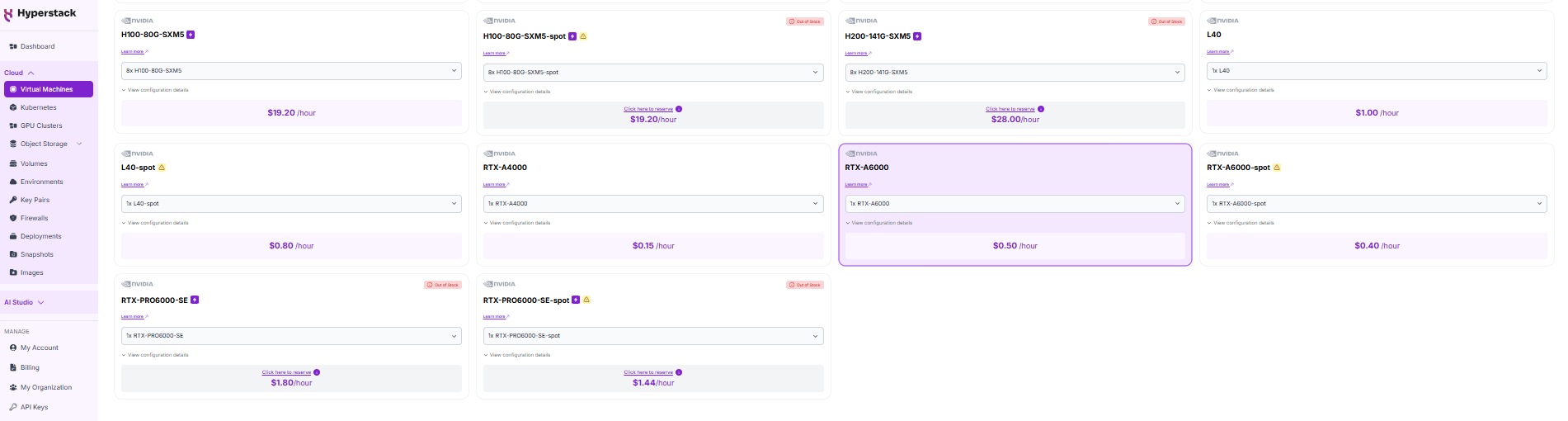
- GPU flavour: 1 × NVIDIA RTX A6000
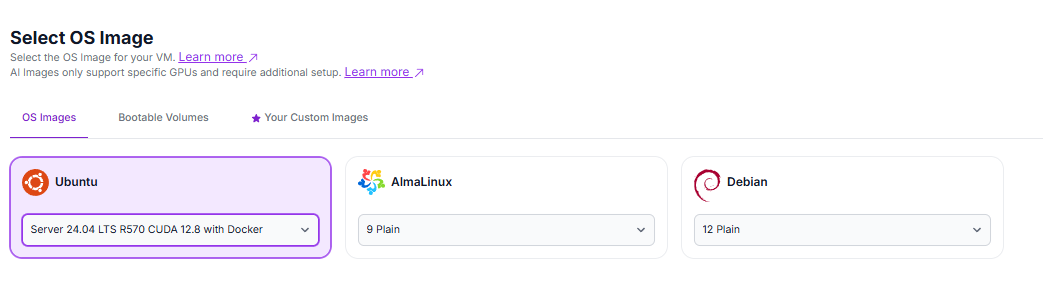
- OS image: Latest Ubuntu with CUDA and Docker pre-installed. Select the "Ubuntu Server 24.04 LTS R570 CUDA 12.8 with Docker".
3. Launch the VM. Hyperstack will automatically select the region.
Once the VM is running, connect via SSH and note the public IP address.
Step 2: Deploy Ollama
Create a directory to persist Ollama models and run the Ollama container.
mkdir -p /home/ubuntu/ollama

sudo docker run -d \
  --gpus=all \
  -p 11434:11434 \
  -v /home/ubuntu/ollama:/root/.ollama \
  --name ollama \
  --restart always \
  ollama/ollama:latest
Pull a model (example: Llama 3.1):
sudo docker exec -it ollama ollama pull llama3.1
By default, Ollama will select a quantised version of the model to optimise for ease of use and lower memory requirements.
Step 3: Interact with Ollama
You can interact with Ollama using:
-
The Ollama CLI:
sudo docker exec -it ollama ollama run llama3.1:8b
You can now chat directly with the model you’ve just downloaded here. When you’re ready to end the session, simply type /bye and the chat will terminate.
OR
-
UI layers such as OpenWebUI or other OpenAI-compatible interfaces. Check out how to set up OpenWebUI here.
Ollama is now successfully deployed and running on your Hyperstack GPU VM.
Important Limitations of Ollama
Ollama is excellent for quick testing and experimentation but it is not optimised for production-grade inference workloads.
Not Built for High-Speed Inference
Ollama takes away many performance and optimisation controls to simplify setup. This can limit throughput, fine-tuning and scalability when running large or latency-sensitive workloads.
Possible GPU Usage Issues
In some cases, Ollama may silently fall back to CPU execution if it encounters a temporary GPU issue. This can lead to significantly slower inference without clear warnings. If performance drops unexpectedly, always verify GPU usage.
Default Quantised Models
Ollama automatically selects quantised models by default (for example, 8-bit instead of FP16). While this improves accessibility and reduces memory usage, it can impact both performance and output quality.
If your hardware supports it, you can explicitly pull higher-precision models:
ollama pull llama3.1:8b-instruct-fp16
Limited Context Window by Default
Ollama uses a default context window of 2048 tokens. You can increase this by specifying a larger context size in your request:
curl http://localhost:11434/api/generate -d '{
  "model": "llama3.1:8b-instruct-fp16",
  "prompt": "Why is the sky blue?",
  "options": {
    "num_ctx": 4096
  }
}'
Common Issues and Quick Fixes
Ollama not responding?
-
Check that the container is running
-
Inspect container logs for errors
Slow responses?
-
Confirm the GPU is attached and active
-
Check GPU memory usage
-
Verify the model precision and size
Conclusion
Deploying Ollama on Hyperstack gives you a fast and flexible way to experiment with large language models on powerful GPU infrastructure. While Ollama is best suited for development and testing, it provides a simple entry point for running and exploring models before moving to more production-focused inference stacks.
Get Started on Hyperstack
Spin up a GPU VM and deploy Ollama in just a few clicks.
Run on Hyperstack →
FAQs
Do I need a GPU to deploy this setup?
Yes. This guide assumes a GPU-enabled Hyperstack VM for optimal performance, especially when running larger models.
How long does deployment take?
Typically 5–10 minutes, depending on VM launch time and model download size.
Is this suitable for production use?
No. This guide is intended for experimentation and development. Production workloads require more robust inference servers and monitoring.
Can I change models or precision later?
Yes. You can pull different models or precision variants at any time without redeploying the VM.
What if something doesn’t work?
Most issues relate to GPU access, networking or model configuration. Check logs, GPU availability and port settings before retrying.
Subscribe to Hyperstack!
Enter your email to get updates to your inbox every week